

Tutorial: Coding Agent
If you're already using Claude Code or Codex, Omnigent runs them for you and adds a web UI, mobile access, session sharing, inline comments, and more.
Time: 5 minutes. Everything runs locally.
1. Start your coding agent
-
Launch your agent. Either command starts it in your terminal and opens a web UI at
http://localhost:6767.omni claude # Claude Code omni codex # Codex -
Give it a task. For example:
Write a Python function that reads a CSV file and returns the top 5 rows sorted by the second column. -
Open
http://localhost:6767to follow along in the Omnigent UI. The desktop app connects to the same address.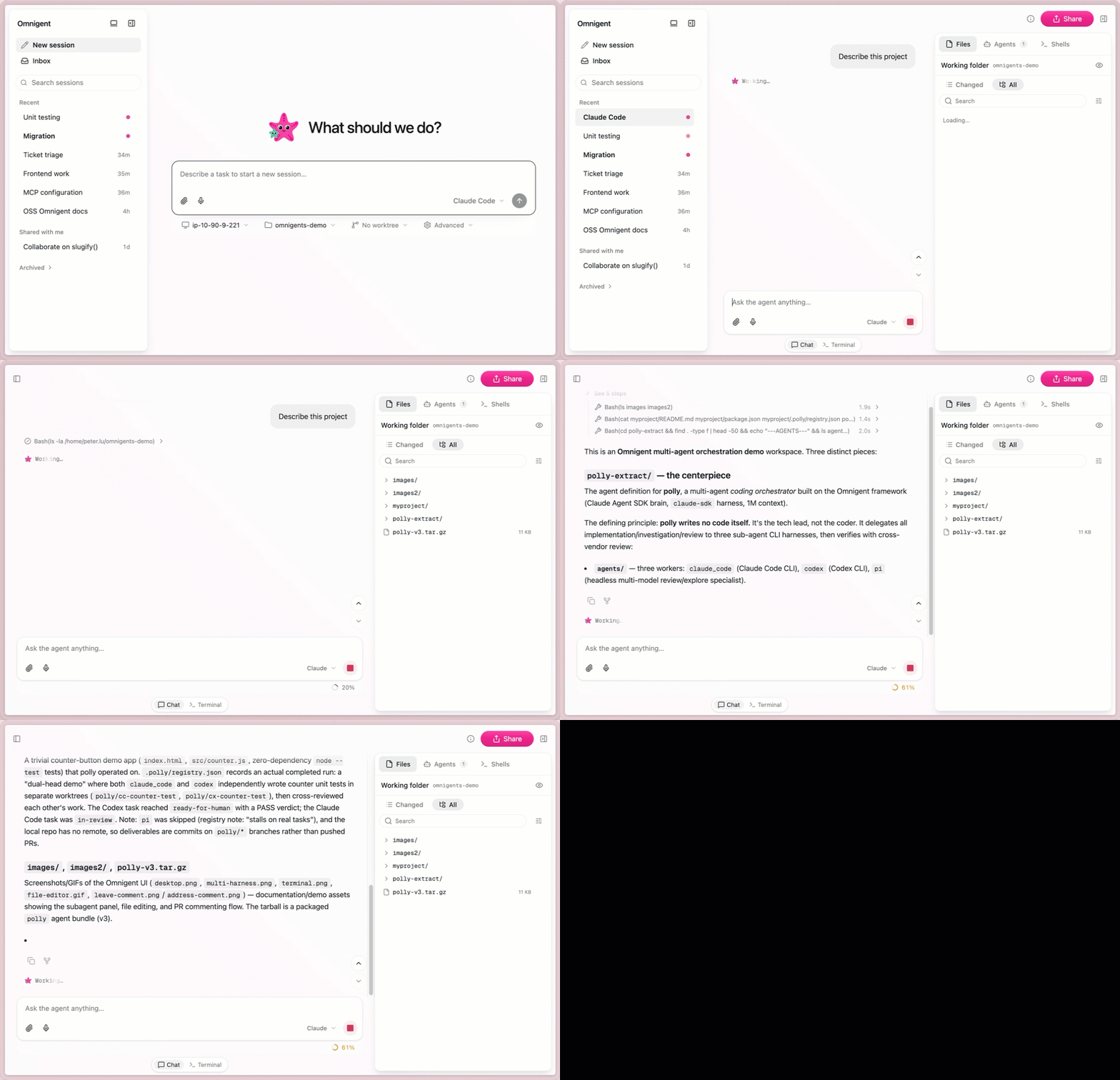
2. Explore Omnigent features
Comment on the agent's work
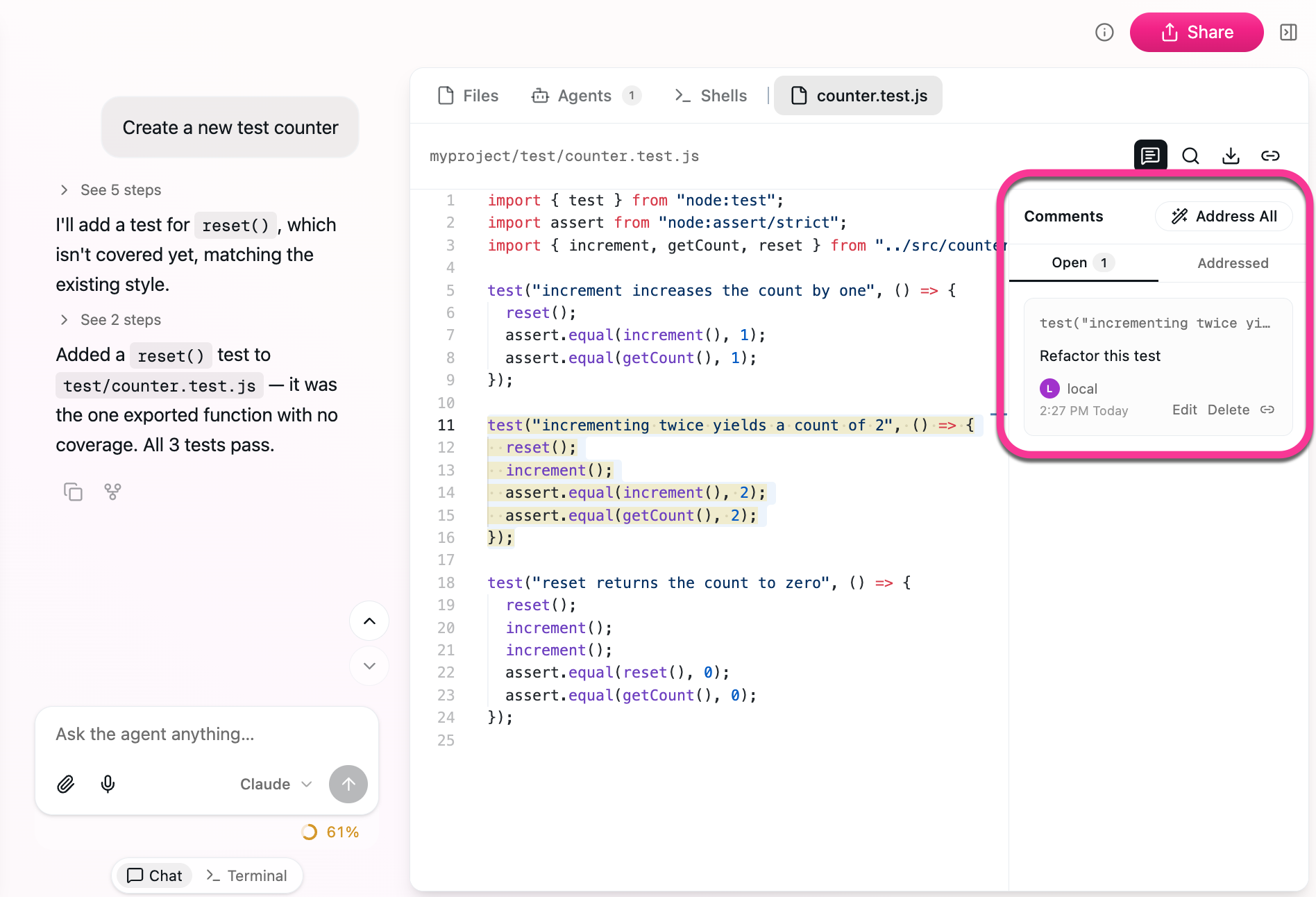
Click any part of the agent's output and leave an inline comment. The agent sees exactly what you highlighted and revises it. Click Address All to have the agent automatically address all your comments.
Edit files directly
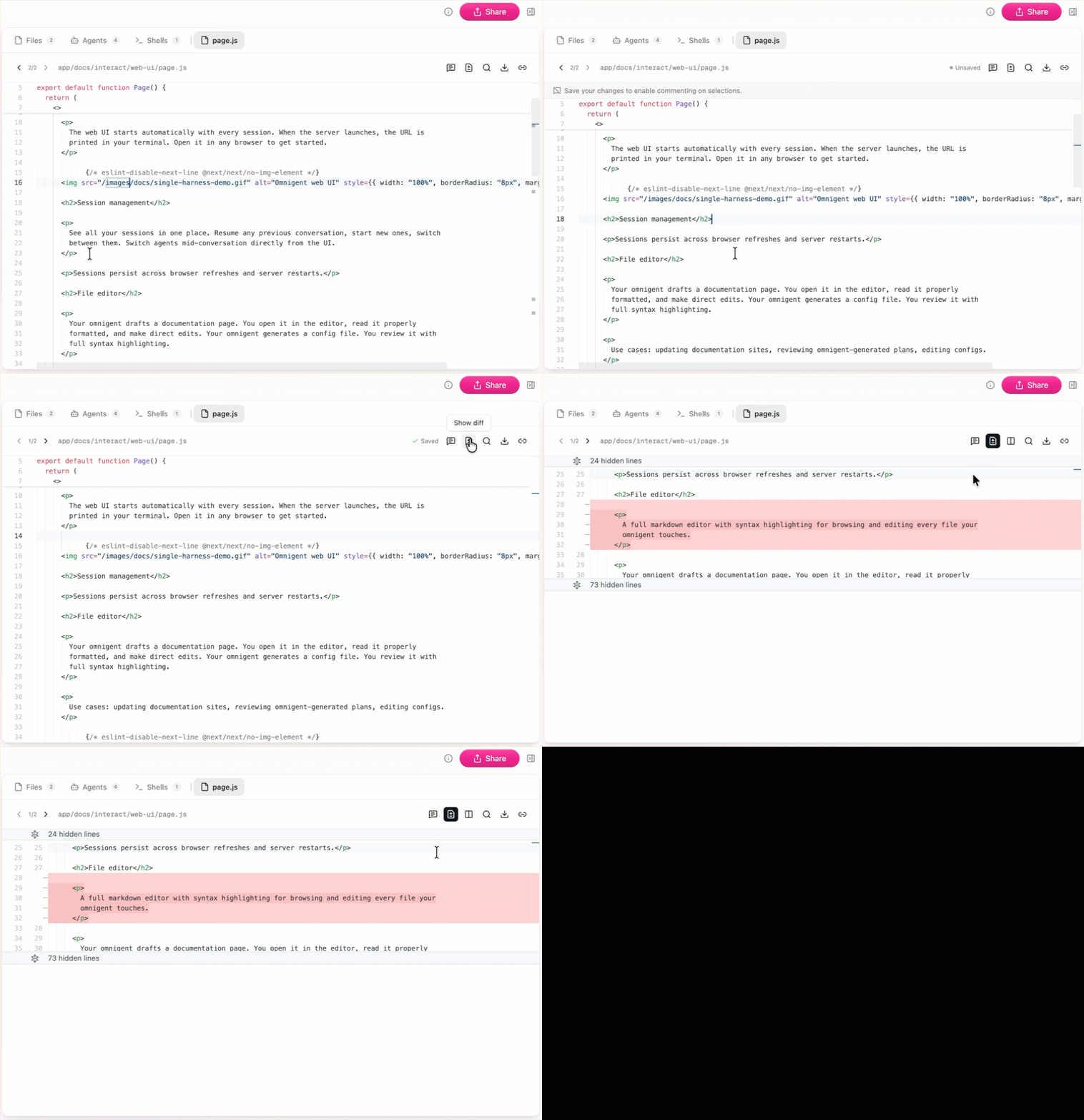
Open any file the agent created in the built-in editor. Make changes yourself with syntax highlighting. The agent can see your edits and continue from there.
Paste an image
Drag a screenshot, mockup, or diagram into the chat. The agent sees it alongside your text. Try pasting a screenshot of a UI bug or a design spec.
Fork a session and switch agents
Fork your current session to try a different approach without affecting the original. Click the icon on any message to fork from that point. The fork copies the full conversation history up to there, so you can experiment freely. You can also fork to a different agent: start in Claude Code and continue with Codex, or vice versa.
Use the built-in browser (desktop app)
The Omnigent desktop app includes an embedded browser pane your agent can drive directly: navigate to a URL, click elements, type into inputs, and take screenshots. The pane opens automatically when the agent needs it. Use it for tasks like testing a local web app, scraping a page, or verifying a UI change.
Share a session for pair programming
Hit Share in the web UI to get a link. Teammates join with Read access
(watch the stream) or Edit access (co-drive and send messages). Messages, tool calls, and file changes all stream in real time. From the terminal, omni attach <session_id> does the same thing.
3. Add a policy in plain language
Type this into the chat:
Don't send any PII like emails or credit card numbers to the model. Ask me first if a message contains some.
Omnigent attaches a PII policy to the session. Every outgoing model request is scanned, and anything containing PII is held for your approval before it leaves your machine. Cost budgets, access controls, and more work the same way. See Contextual Policies.
What's next
Try Polly to coordinate multiple agents across different AI providers (Claude Code, Codex, Cursor) on the same task, whether that's splitting the work or having them review each other's output.